ciysys Expenses Tracker - the user guide with in-depth explanation
Table of contents
- What is an expense tracker
- Why tracking your expenses
- See how our system helps you to track the your expenses and improve your savings
- What is the difference between Ciysys Expense Tracker and system from other competitor
- Does it worth the effort to keeping track your spending
- Summary
What is an expense tracker
An expense tracker is a system that helps in tracking your daily expenses or spending. Most of the expense tracker allows you to classify your expenses during the data entry. And then using data analysis functions in helping you to understand your spending pattern.
Why tracking your expenses
Here’s an article that we wrote years ago explaining why you should track your expenses.
See how our system helps you to track the your expenses and improve your savings
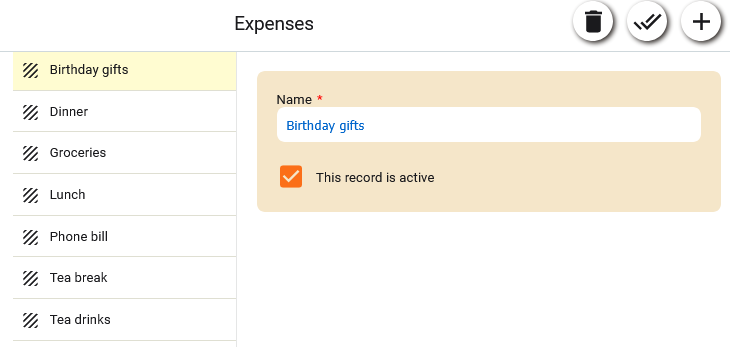
Classification on your expenses
First and foremost, you need to review the built-in classifications and make the necessary changes. In fact, this is not a compulsory step because you will be able to add new classification during the data entry.
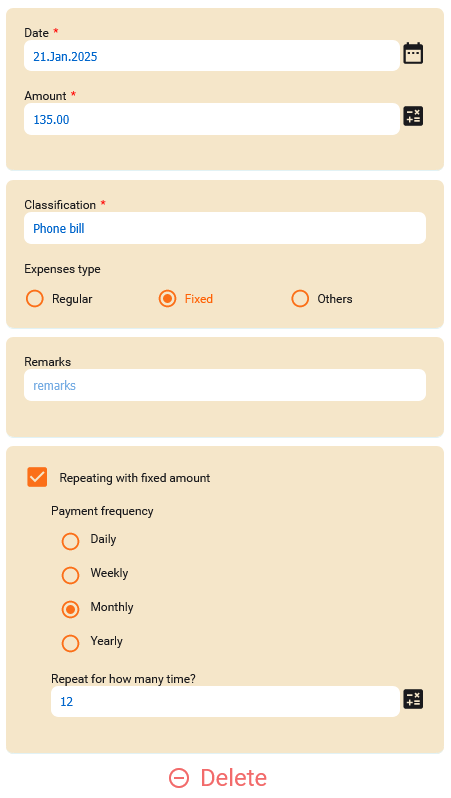
Entering your expenses
The data entry for your spending is quite straightforward and minimal. You will have to key in the spending date, amount, classification and the expenses type. For any “fixed” spending like phone bill or rental which you need to pay every month or week, you will have to specify the payment frequency. And don’t forget to tick the ‘Repeating with fixed amount’ option.
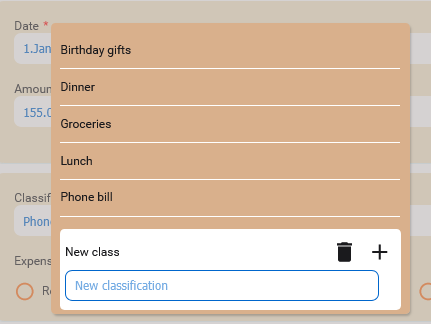
When you click on the Classification field, a list of classification will appear in the popup. Either choose a classification from the screen or create a new one on the fly (by entering the description and then click on the “+” icon)..
Our system does not provide any way to upload the receipt photo for the reason to avoid occupying the storage space.
Expenses history
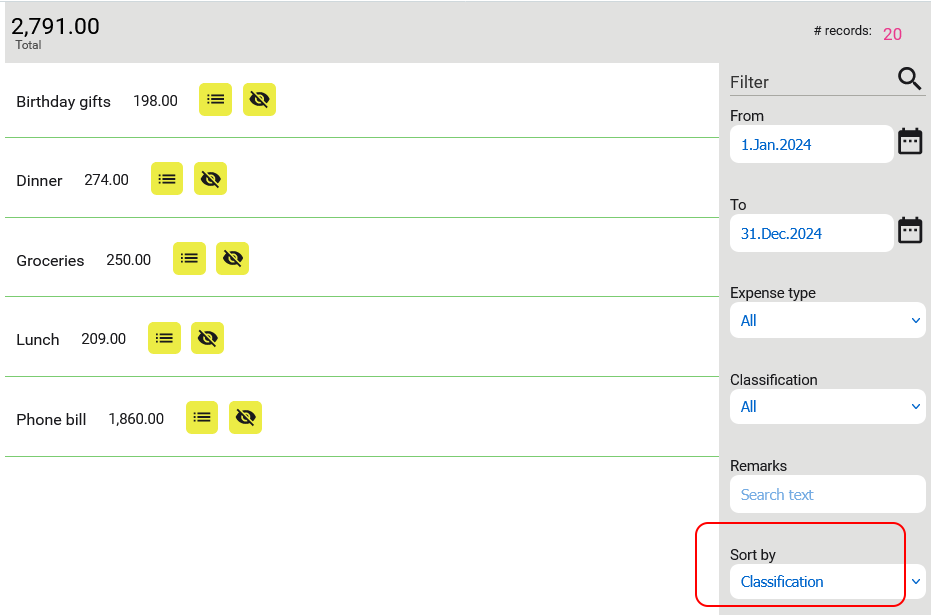
You can view what you have keyed in through the “Entries” screen. In this screen, choose the From date and To date to limit the data to be appeared on the screen. Other filters like expense type and classification are serving for the analysis purpose. For example, you want to find out how many expensive dinners that you have spent in 2024.
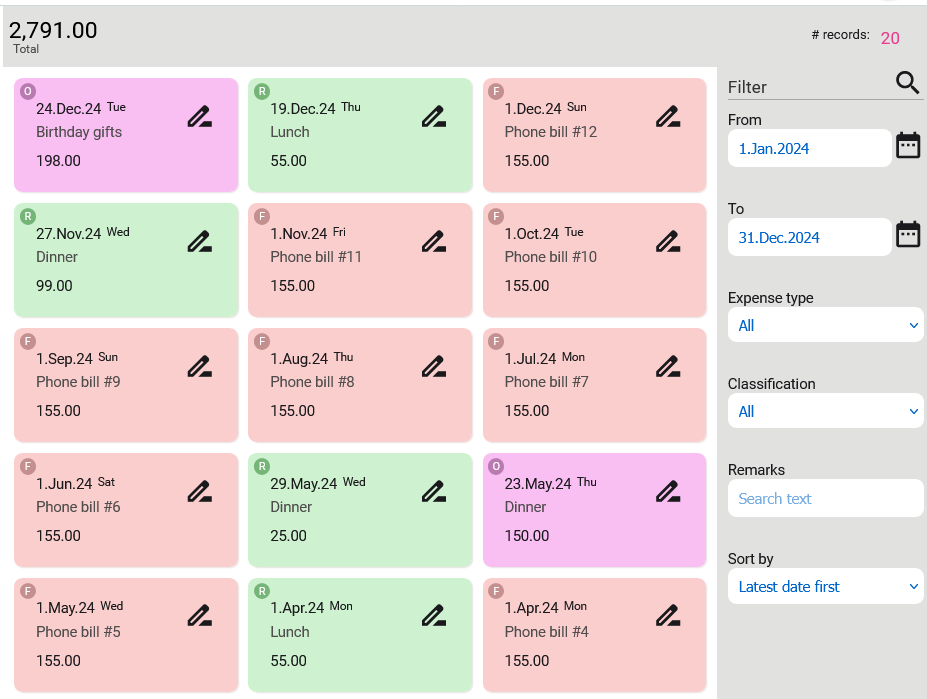
Analyze your spendings from different angle
You can sort the data by Classification and the item detail will be replaced by the classification and the total spending for that class.
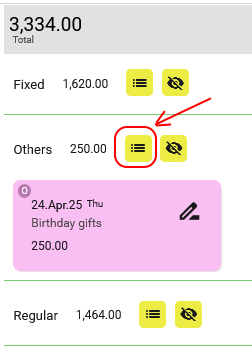
You may also sort the data by “Expense type” to ease you from viewing the total for each expense type.

To make all the items in the group visible, click on the first icon  next to the group amount. Click on it again to hide the items. This icon works like a simple drill down for you to review the details. The reviewing process is to find out why you have spent the money and is there a need to limit yourself in spending those money.
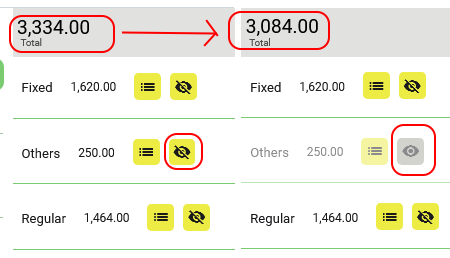
The second icon  next to the group amount is to “exclude” the amount from the total. For example, we want to exclude the “Others” (250.00) from the total. Once you click on it, the background color will change from yellow to gray. And 250.00 will be excluded from 3,334.00 and the total amount will reduce to 3,084.00. This is useful during the data analysis because the other expenses are not always happening and you might want to know if this month's total expenses (without other expenses) is more or less like last month. If yes, it means your spending pattern might repeat in every month and this will become your minimum monthly spending.
Expenses summary for all years
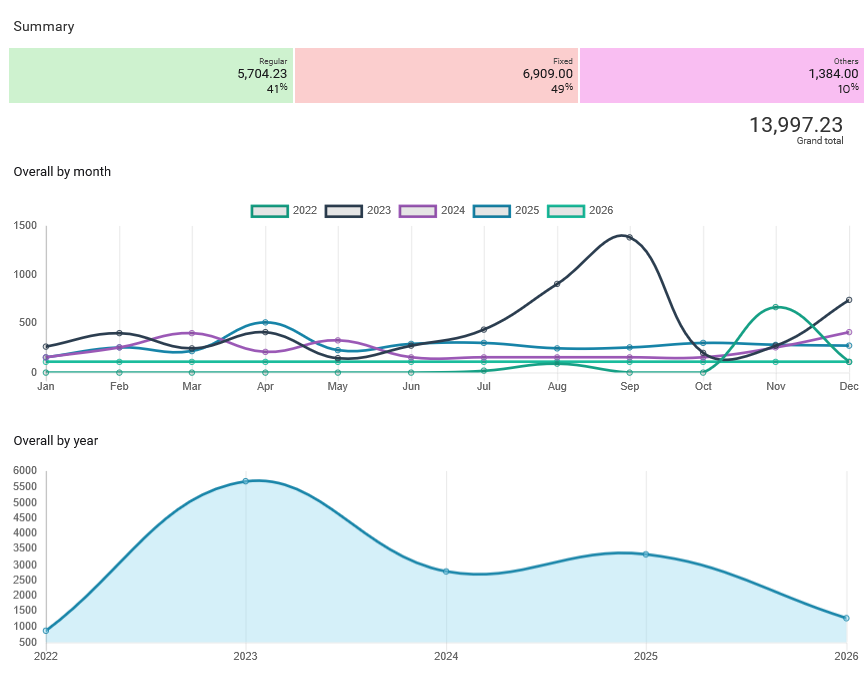
In order to help the user from comparing their spending over the years, they may access the Summary option.
The first chart“Overall by month” on this screen shows the total monthly expenses for each year. It allows you to see your spending pattern on a year to year basis. From our experience, it should be more or less the same pattern for each year because you might have to pay a yearly insurance premium on the same date and repeatedly pay every year.
The second chart is “Overall by year”. It shows the total yearly spending continuously for all the years. Usually, the line on the chart should be moving upward gradually due to inflation. But, it might move downward if you managed to cut down your spending. This will be good news.
12 month expenses chart
This chart shows the total monthly expense for the selected year.
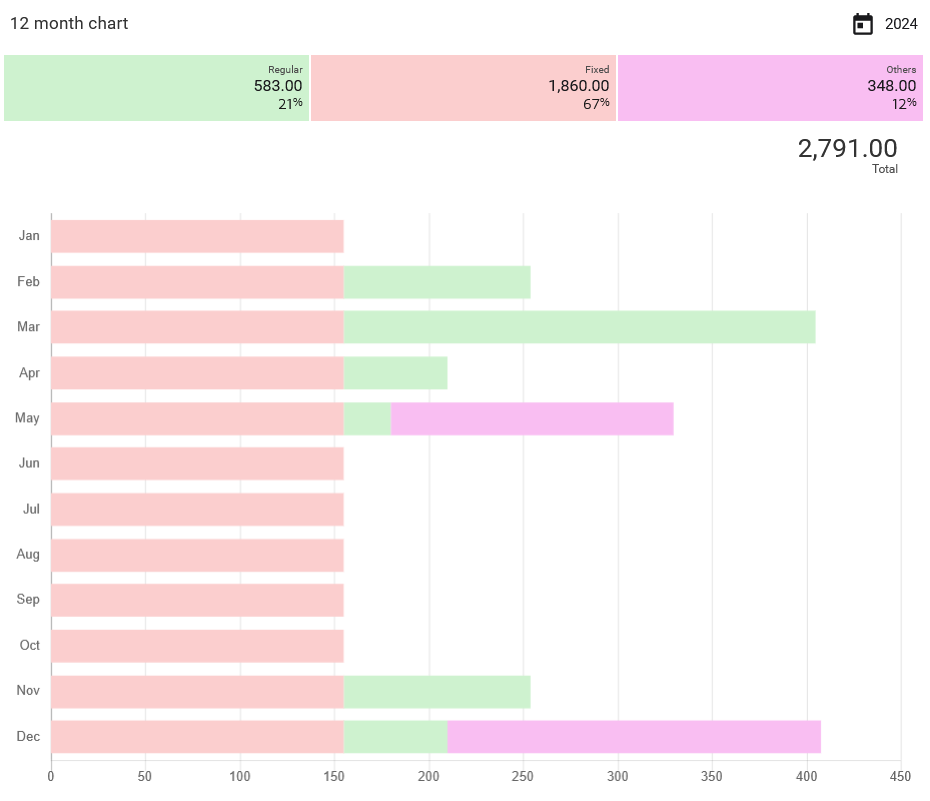
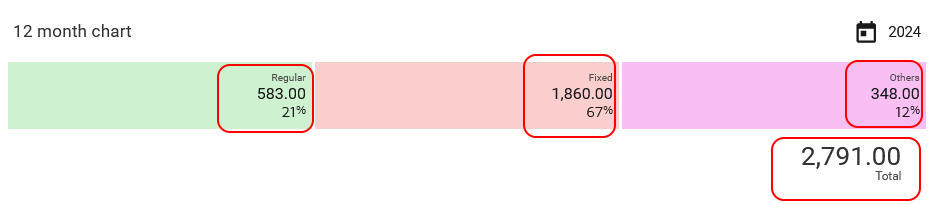
In case you want to find out why the spending is higher, you may click on the highlighted area and the details will be shown in the Entries screen. For example, if you click on “Others” (i.e., the purple color box) and then the Entries screen will appear with the correct filter (i.e., the date range and expense type will be automatically filled in with the appropriate value).
12 month expenses summary chart
If you prefer to view the total amount for each expense type rather than a bar chart, you can rely on this screen.
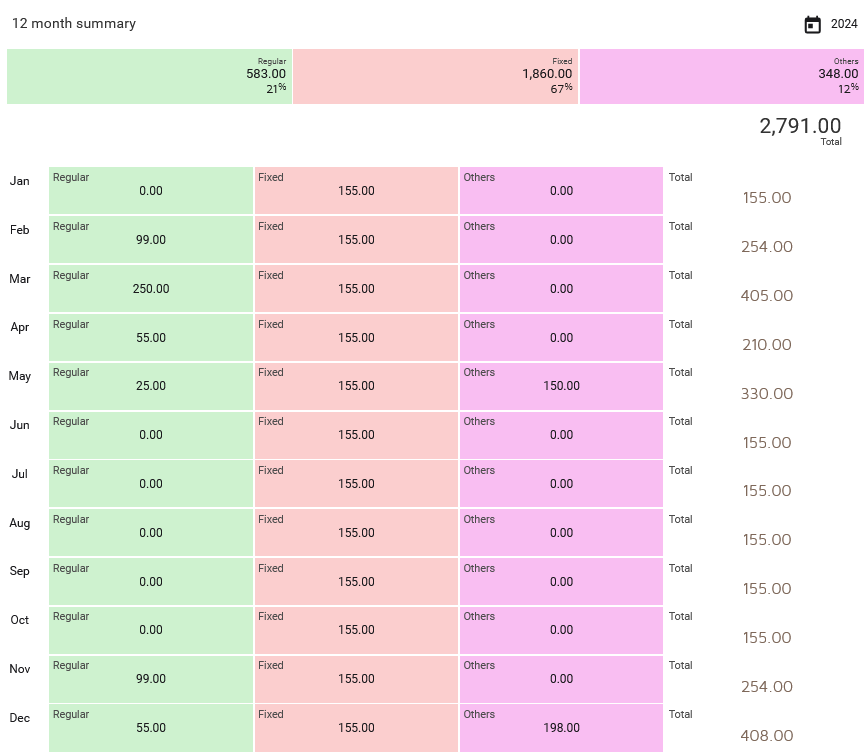
In this screen, it also allows you to drill down from the total to the details. Just click on the highlighted area and the Entries screen will appear.
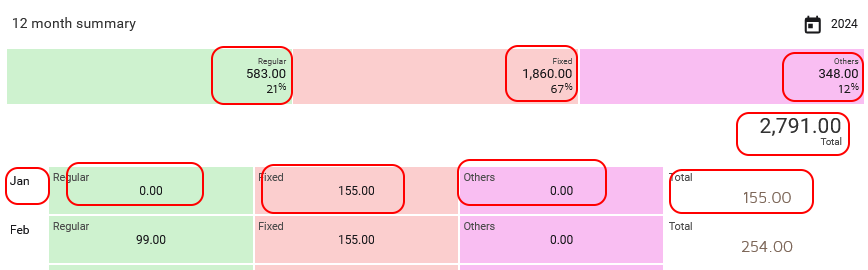
Review the high spent month with ease
The drill down feature and the sorting is very helpful and serve as a data analysis tool. The more time you spend reviewing your expenses, the more you will be able to tell where you have spent your money. It’s not necessary to say that you must cut down your expenses but it will be wonderful to minimize the waste of your money.
User access control
In case you need help or advice from your friend or mentor, you may invite them to your database by giving them an appropriate access permission.
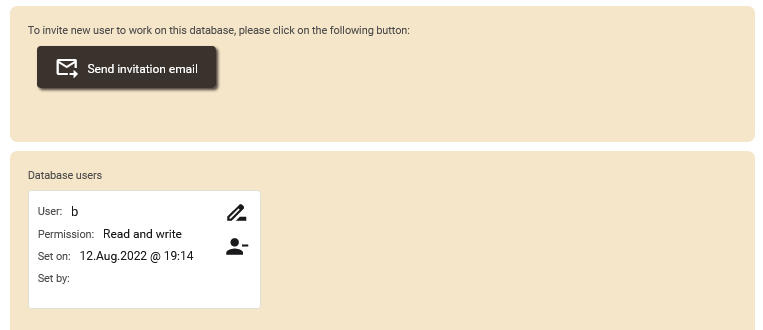
Invite new users to your database
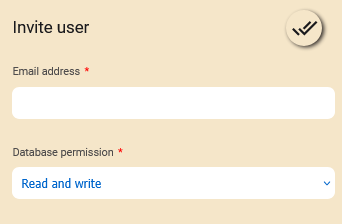
To do this, click on the “Send invitation email” option and the following will appear on the screen. Key in the recipient email address, choose the appropriate access permission and click on the Save button (at the top right corner) and the email will go out. The recipient will create their own password and you don’t have to set it for them.
Audit log
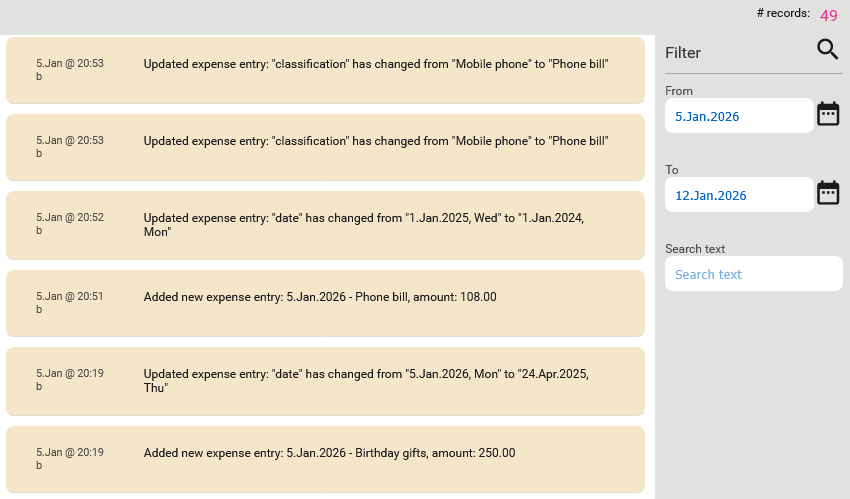
The audit log shows you who has accessed your data, the time on accessing your data and what has been done. We included this feature for you so that you can review your recent activities. Because the audit log information is not editable or eraseable, it makes the system more reliable.
My account
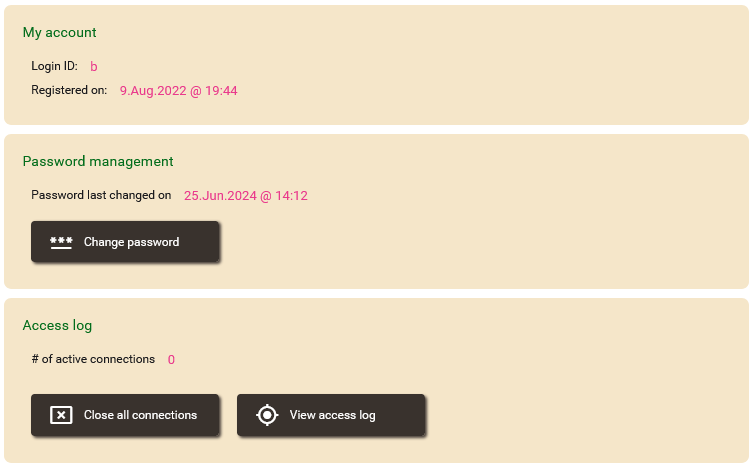
Every user is able to view their account with this screen. It is a simple screen that allows the user to manage their password and connections.
Change password
This option is for changing your password after you have accessed the system. Another option to change your password is the “Forgot password” on the login screen which you need to key in your login ID (i.e., your email address) and a reset password link will be emailed to you. The “Forgot password” option is helpful when you have forgotten your password which could be due to not accessing the account.
Close all connections
In case you suspect that someone has gained access to your account through the browser that you are using, you may use this option to close all the connections. By doing this, the system will force logging out all the existing connections. If anyone wants to access your account, they must have the correct user ID and password.
As a precaution, you should logon and change your password after you have closed all the connections.
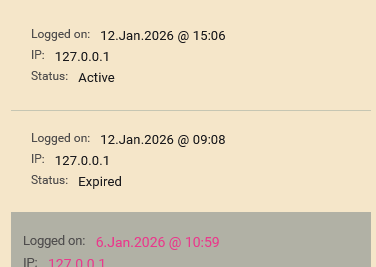
View your access log
This option shows the IP address from where you were accessing your data. It’s useful but requires some technical knowledge on the Internet connection and IP address. And, yeah, most of the time you don’t need to bother about this.
What is the difference between Ciysys Expense Tracker and system from other competitor
We developed this system because we need to track our expenses. The first version was on a paper. The second version was on a system developed using FoxPro. After many years, upgraded to Visual Basic and then migrated again to C#. Now, this system has been migrated to Node.js. We have migrated our data as well and there is about 20 years of data. So, we are confident that using an Expense Tracker system can help in improving your savings and reducing expenses even though it cannot help in beating inflation. Our expenses keep increasing every year, not because we are spending on luxurious stuff. In fact, the price of the same food and groceries has really gone up.
The Expense Tracker that we developed is from our live experiences.
On the other hand, we offer two licenses: perpetual license (i.e., paid once and used forever) or paying monthly subscription. Both have pros and cons.
Does it worth the effort to keeping track your spending
Yes. It’s worth it. It is advisable to keep an eye on what you have spent and save your money for emergencies because emergencies are unpredictable.
Summary
We hope that our system is able to help you in managing your expense. In case you are looking for a system that helps you to track your expenses, check out our Expenses Tracker System
Back to #APPS DEV blog
Back to #blog listing